 VoxCaption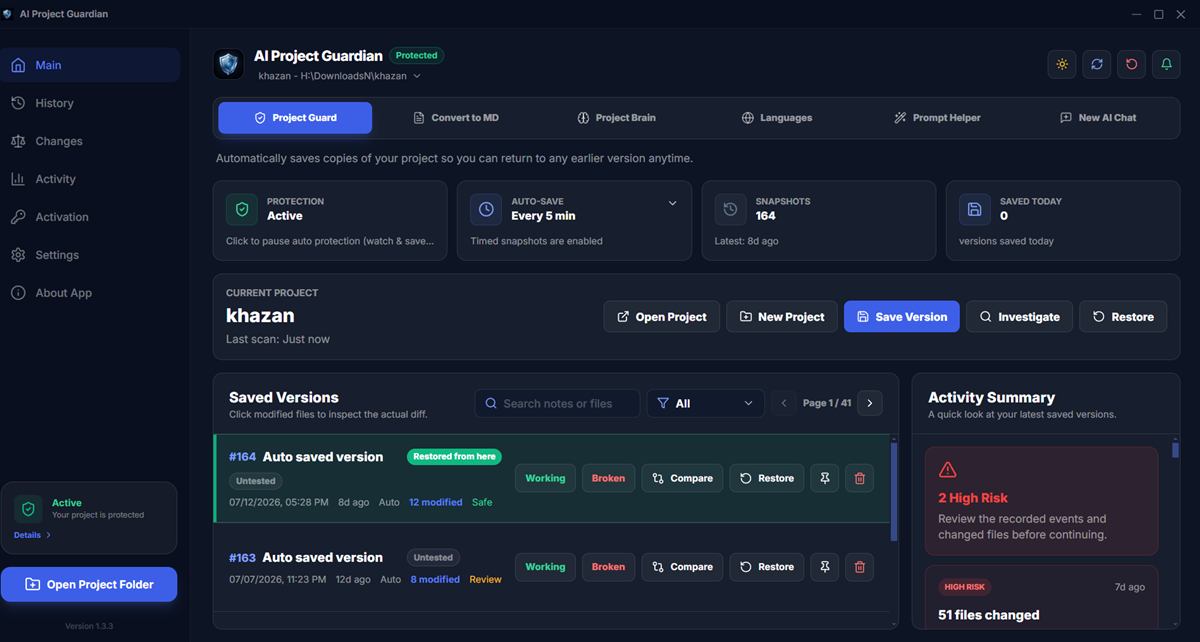
Why AI coding disasters are different from normal bugs
A human developer breaks one thing at a time. An AI agent can touch dozens of files in a single turn, and it often commits over your git history as it goes. Worse: the damage is usually discovered two or three sessions later, after new work has been layered on top. By then, "just undo it" is no longer simple. That's why you need more than one recovery strategy.
1. Check git — but know its limits
If the damage is uncommitted, you're lucky:
- Single file:
git checkout -- path/to/filerestores it from the last commit. - Everything:
git stash(recoverable) orgit reset --hard(destructive — be sure). - The agent already committed?
git refloglists every state HEAD has pointed to — find the hash from before the damage andgit reset --hard <hash>.
The catch: agents commit frequently and with generic messages, so finding "the last good state" in a wall of "update files" commits is painful. And if the broken change is mixed into the same commit as work you want to keep, untangling it takes real time.
2. Use your IDE's local history
VS Code keeps a Timeline (right-click a file → Open Timeline) and JetBrains IDEs have Local History. Both store per-file change history independent of git. This works even for files the agent deleted — recreate the file, then restore from Timeline. Limits: it's per-file (no whole-project restore), retention is short, and history from outside the IDE (an agent editing via terminal) may not be captured.
3. Ask the AI to fix what it broke — carefully
Sometimes the fastest fix is telling the agent exactly what regressed: "The login flow worked before your last change to auth.js — compare and restore the working behaviour." This works when the agent still has the session context. It fails when the session is gone — a fresh session doesn't know what "before" looked like, so it guesses. If you do this, commit the current (broken) state first, so the AI's second attempt can't make things worse than they already are.
4. Windows File History and backup tools
If you enabled File History (Settings → Backup) or use a sync tool like OneDrive/Google Drive with version history, you can pull older copies of individual files. It's slow — you restore file by file, and cloud version history typically only covers files inside the synced folder. Consider this the fallback when nothing else works.
5. Automatic snapshots built for AI coding
All four methods above share one flaw: they weren't designed for the AI-agent workflow. That's the problem AI Project Guardian was built to solve. It runs quietly in the background while you code with any AI tool and takes automatic encrypted snapshots of your whole project — outside your git history, so agent commits can't bury them.
- One-second rollback — restore a single file or the entire project to any earlier version.
- Visual diff — compare any two versions to see exactly what the agent changed.
- Mark versions Working / Broken — so "the last good state" is never a guessing game again.
- 100% offline — snapshots are AES-256-GCM encrypted on your own disk. No cloud, no account.
- Smart ignoring — node_modules, dist and build folders are skipped automatically.
It also generates Project Brain files — factual context documents built from your code — so each new AI session starts informed instead of re-learning your project from zero.
Prevention checklist for AI-assisted coding
- Save a clean version before asking an agent to edit anything big.
- Review diffs after every agent turn — don't batch-trust ten changes at once.
- Keep recovery points outside the agent's reach (it can rewrite git history; it can't touch encrypted snapshots).
- Test immediately after risky edits, while "before" is still fresh.
FAQ
Can I recover files the AI deleted entirely?
Yes — from git (if committed), IDE local history, or a snapshot tool. Guardian tracks deletions per version, so a deleted file comes back with a normal restore.
Does snapshotting slow my machine down?
No. Guardian saves timed snapshots (every 5 minutes by default) with deduplication, and skips generated folders — typical projects use surprisingly little disk.
Never lose working code to an AI again
AI Project Guardian — automatic encrypted snapshots and one-second rollback for AI-assisted coding. 14-day free trial, no credit card.
Related Articles
Further reading: learn more about version control (external).